Step one
Open Claude.
Go to claude.ai (also works in Claude Cowork). In the left sidebar, click Customize (or Personalize), then Connectors, then the + button → Add custom connector.
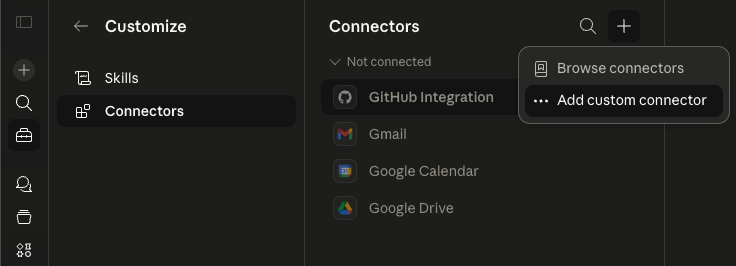
Add our MCP server as a custom connector in Claude. Works on claude.ai and Claude Cowork.
Go to claude.ai (also works in Claude Cowork). In the left sidebar, click Customize (or Personalize), then Connectors, then the + button → Add custom connector.
Use these values:
https://mcp.alpacadocs.com
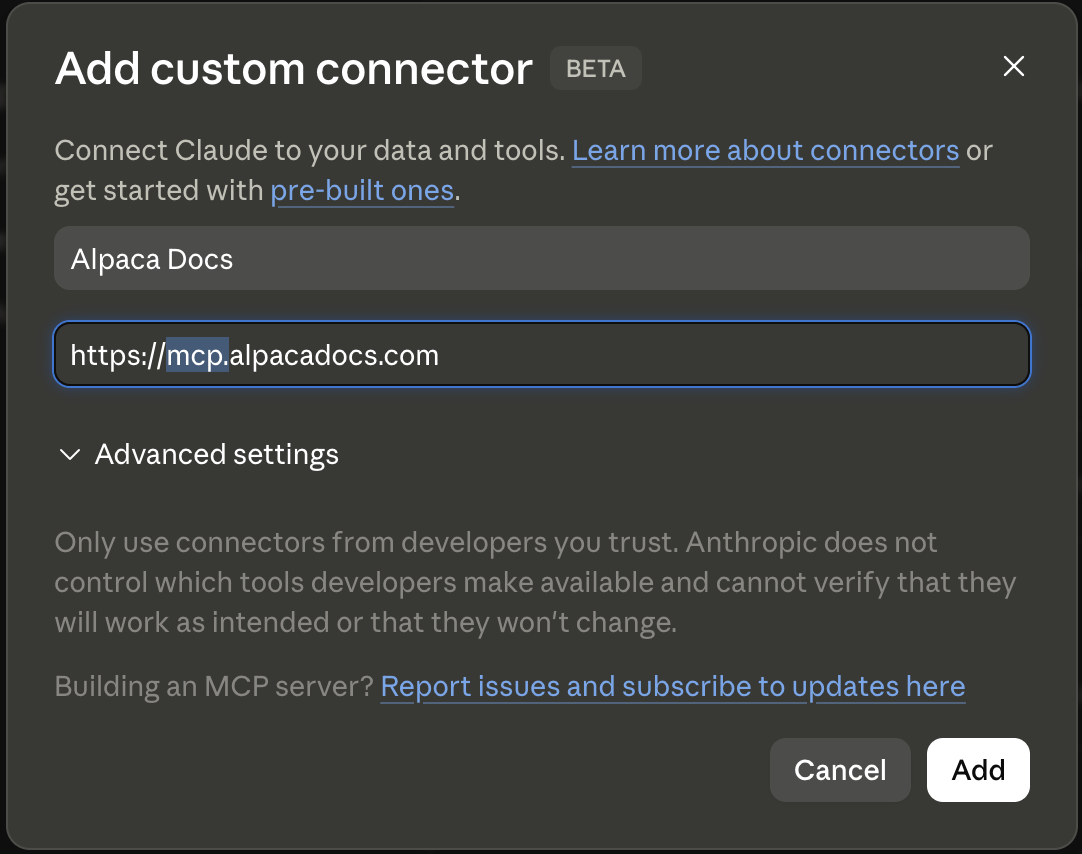
Click Add. The first time you use the connector, Claude asks you to sign in to Alpaca Docs. If you don't have an account, one is created for you.
You can now ask legal questions in Claude and the answers will come with direct links to the official sources.